Most teams don’t notice the problem right away.
Everything seems to be in place. Salesforce holds the customer side. ServiceNow handles incidents and requests. Each system does what it’s supposed to do.
The trouble starts in between.
A case gets created in Salesforce, but no one on the IT side sees it until someone flags it. An incident is updated in ServiceNow, but that update never makes it back to Salesforce unless someone copies it over. Nothing is broken, but nothing really stays connected either.
So people fill the gaps.
Someone checks statuses manually. Someone else forwards updates. Another person keeps track of things in their own way just to stay on top of it.
At first, it works.
Then it becomes routine. And that routine slowly turns into friction.
Where Salesforce and ITSM Usually Fall Apart
The disconnect is not obvious at the start.
Both systems are active. Data exists. Work moves forward. But the link between them is weak, and that weakness shows up in how people interact with the system.
Instead of relying on what they see, they start asking. Instead of trusting the data, they verify it. Instead of following a clear flow, they improvise.
It shows up in familiar ways:
- Teams ask for updates instead of seeing them
- The same issue is tracked in multiple places
- Status changes do not reflect in real time
- Important context gets lost between systems
- Work slows down because it needs coordination
None of this looks critical on its own. But together, it makes everything harder than it needs to be.
What a Good Salesforce–ITSM Integration Actually Fixes
A proper connection between Salesforce and ITSM changes how work feels.
You stop thinking about where information lives. Cases and incidents stay tied together without extra effort. Updates show up where they should, without anyone having to push them.
It is not about adding more features. It is about removing the need to manage the connection manually.
When it works, the system stops interrupting the process.
You don’t have to switch tools just to understand what is going on. You don’t have to double-check whether something is up to date. You just work with what is already there.
1. Peeklogic Salesforce ServiceNow Connector
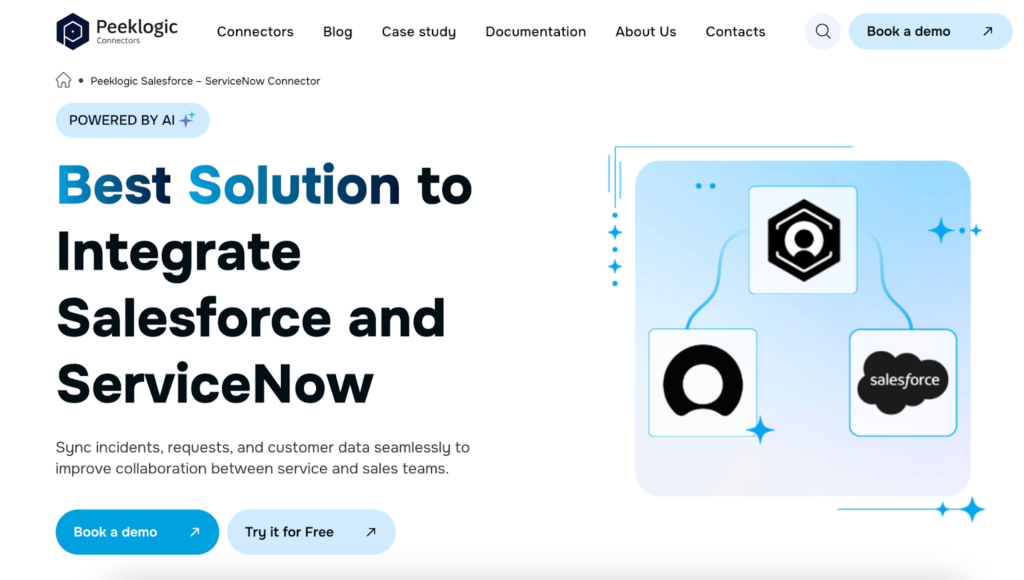
When the gap sits between customer teams and IT, it becomes noticeable very quickly.
Salesforce shows the customer side of the story. ServiceNow handles what happens next. Without a solid link, those two sides drift apart.
People end up doing the same work twice. Creating incidents manually, copying updates, and checking progress.
The Salesforce ServiceNow Connector from Peeklogic takes that manual layer out.
It keeps both systems aligned without requiring someone to manage the connection. Updates move as they happen, not when someone remembers to sync them.
It also brings ServiceNow data into Salesforce, so teams don’t have to leave their workspace to get context.
Teams typically use it for:
- Two-way synchronization between Salesforce and ServiceNow
- Syncing incidents, requests, and custom records
- Real-time visibility of ServiceNow data inside Salesforce
- Creating and linking incidents directly from Salesforce
- Syncing comments, work notes, and attachments
Once it is in place, the need to coordinate updates manually almost disappears.
2. MuleSoft
In larger setups, the issue is rarely just one connection.
There are multiple systems involved, each with its own structure. Integrations exist, but they don’t follow a consistent pattern. That is where things start to feel scattered.
MuleSoft is used to bring order to that.
It introduces a structured way for systems to interact, so data moves in a predictable way instead of depending on individual integrations.
Teams rely on it for:
- Building API-based integrations across multiple systems
- Standardizing data flow between platforms
- Supporting complex enterprise environments
- Managing integrations at scale
- Connecting legacy and modern systems
It is less about quick fixes and more about making sure everything follows the same logic.
3. Workato
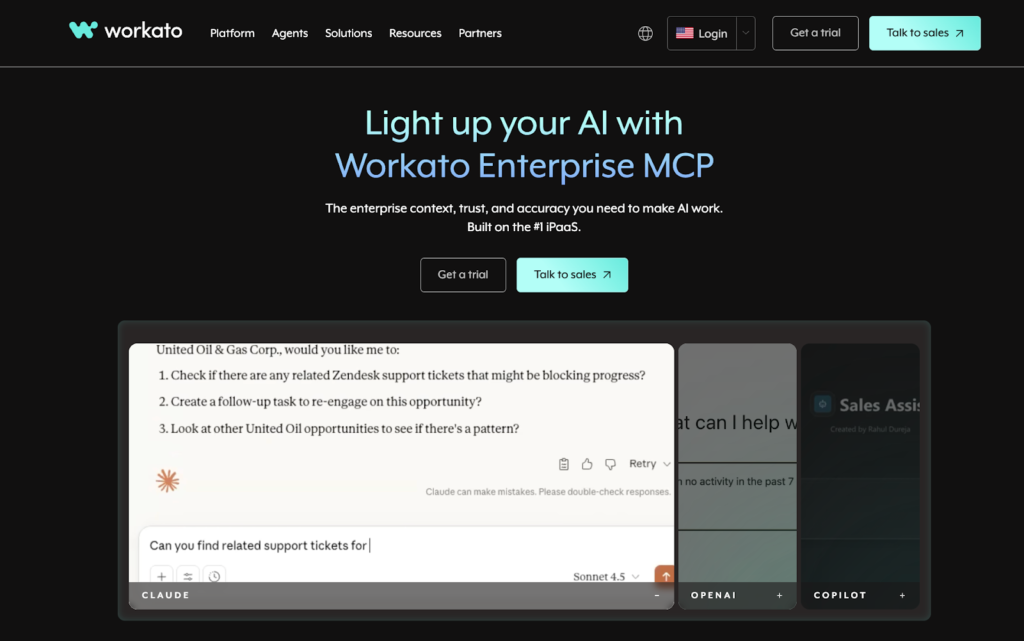
Sometimes the problem is not the data itself, but what happens after it appears.
A case is created, but nothing follows unless someone takes action. An update happens, but the next step depends on manual input.
That is where Workato fits in.
It connects actions, not just data. It allows processes to move forward without waiting for someone to trigger each step.
Teams use it for:
- Automating case-to-incident workflows
- Connecting Salesforce with ITSM and other systems
- Reducing manual coordination between teams
- Triggering actions based on events
- Managing workflows across multiple tools
When it is set up well, work moves without constant nudging.
4. Zapier
A lot of friction comes from things that feel too small to matter. Updating a field. Creating a record. Sending a notification.
Each one takes seconds, but they repeat all day. Over time, they start to add up.
Zapier handles those small actions.
It reacts to events and takes care of simple updates automatically, which removes a surprising amount of manual effort.
Teams use it for:
- Automating simple updates between Salesforce and other tools
- Reducing repetitive manual work
- Creating basic connections quickly
- Triggering actions from Salesforce events
- Connecting multiple apps without heavy setup
It works best when the goal is to clear out repetitive tasks that should not be done manually.
5. Boomi
When systems grow over time, integrations tend to grow with them.
At some point, there are too many connections to manage individually. Each one works, but together they do not form a clear structure.
Boomi helps organize that environment.
Instead of treating integrations separately, it allows teams to manage them as a whole.
Teams rely on it for:
- Building integrations through a visual interface
- Managing connections across multiple systems
- Supporting both simple and complex use cases
- Scaling integrations over time
- Keeping systems flexible without constant rebuilding
It becomes useful when the system needs structure, not just more connections.
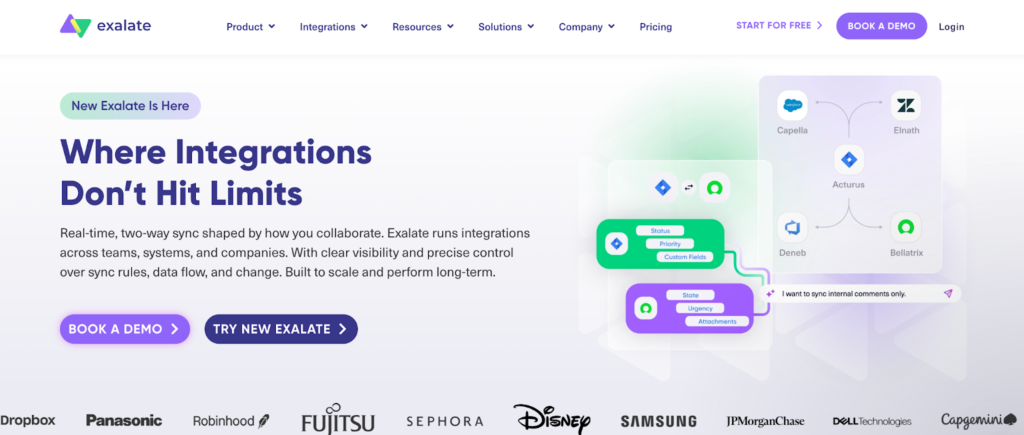
6. Exalate
Not every integration should behave the same way.
Some data needs to be shared fully. Some needs to be filtered. Some need to follow specific rules before it moves.
Exalate gives teams control over that.
Instead of applying the same logic everywhere, it allows adjustments based on how the workflow actually works.
Teams use it for:
- Customizing synchronization behavior
- Controlling how data is shared between systems
- Handling complex workflows
- Connecting Salesforce with ITSM platforms
- Adapting integrations to specific requirements
It is often chosen when standard integrations feel too rigid.
Why Some Integrations Still Feel Messy
Connecting systems does not automatically fix the experience.
Data might be moving, but the process can still feel fragmented. Teams might still need to check, confirm, or adjust things manually.
That usually means the integration is only partial.
If people still have to manage the connection, the problem is still there, just in a different form.
A strong integration removes those extra steps. A weak one leaves them behind.
How to Tell If Your Setup Needs a Better Connection
It rarely feels urgent at first.
Work continues, but it takes more effort. You start noticing small delays. You double-check more often. You rely on conversations instead of the system.
Nothing breaks, but nothing feels smooth either.
When that becomes normal, it is usually a sign that the connection between systems is not doing enough.
What Changes When Salesforce and ITSM Finally Align
When everything is connected properly, the change is not dramatic.
Things just stop getting in the way.
Updates appear where they should. Cases and incidents stay linked. Teams do not have to switch systems just to understand what is happening.
There is less back and forth, less duplication, and less uncertainty.
Work feels more direct.
The Tools Matter Less Than the Connection
There are plenty of tools that can connect systems. Most of them can move data. Many of them can automate actions. What matters is how they handle the interaction between systems.
Some still leave gaps that people have to manage. Others remove those gaps entirely. That difference is what determines whether the system feels connected or not.
Chaos Usually Means Something Is Missing
When things feel disconnected, it is rarely because something is broken. It is usually because something is missing.
A connection that should exist does not. A process that should be automatic still depends on manual work. An update that should appear instantly arrives late.
Once that missing piece is added, everything starts to settle.
Not in a dramatic way. Just enough to make the system easier to work with. And that is usually what removes the chaos.